
Step 1 – Open Account Settings
- Open Outlook (Classic)
- Click File
- Select Account Settings
- Click Account Settings again
- Select the affected email account
- Click Change
Step 2 – Open Advanced Settings
- Click More Settings
- Go to the Advanced tab
- If prompted, enter your existing email password
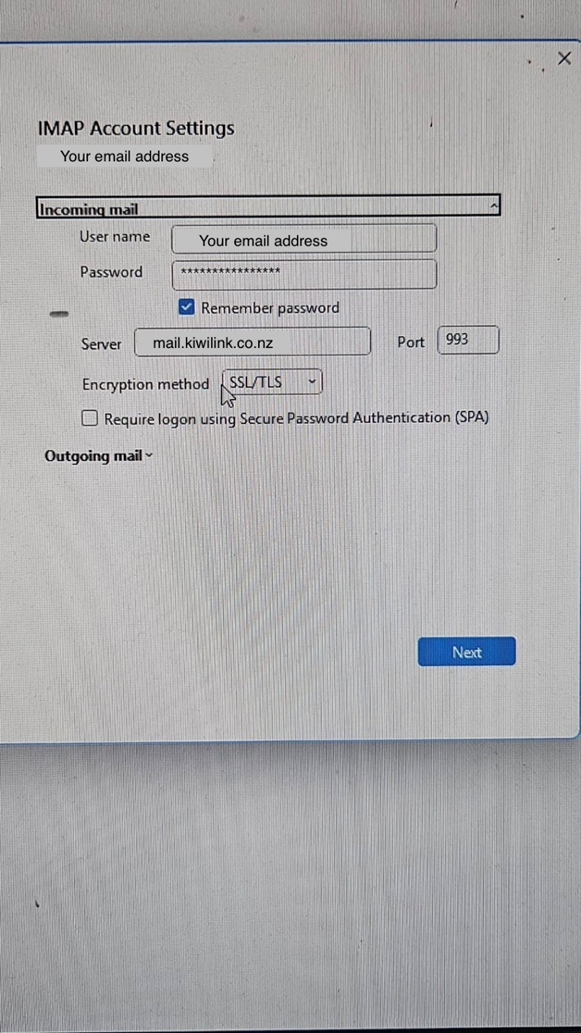
Step 3 – Incoming Mail Server (IMAP)
Update the IMAP settings exactly as below:
- IMAP Server: mail.<yourdomain> (Eg: mail.kiwilink.co.nz)
- Port: 993
- Encryption Method: SSL/TLS
Step 4 – Outgoing Mail Server (SMTP)
- SMTP Authentication
- Open the Outgoing Server tab
- Tick:
o ☑ My outgoing server (SMTP) requires authentication
o ☑ Use same settings as my incoming mail server
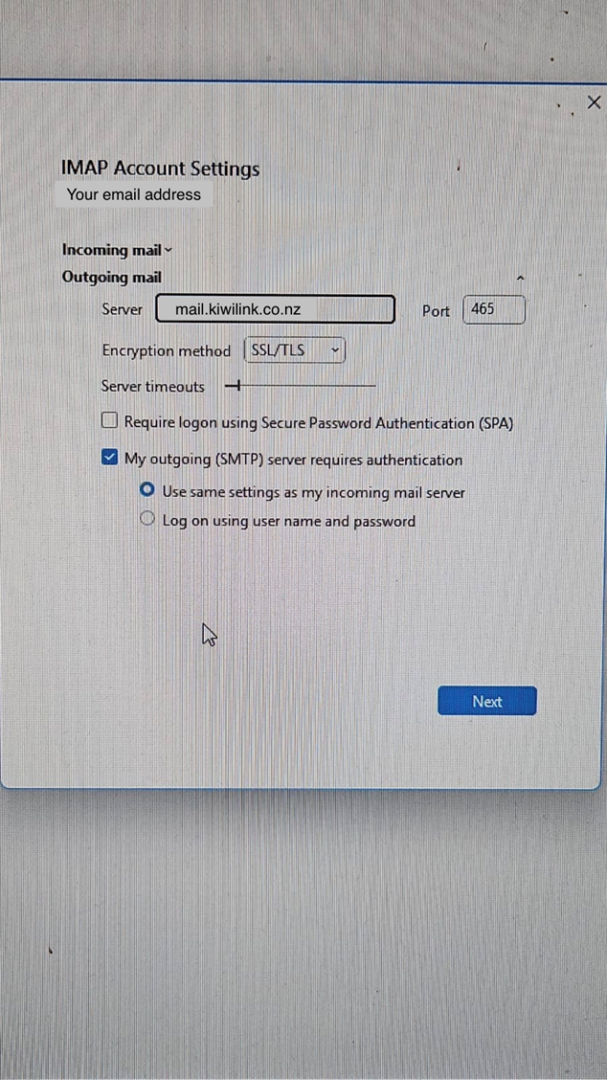
- SMTP Server Details
- Back in the Advanced tab, set:
- SMTP Server: mail.<yourdomain> (Eg: mail.kiwilink.co.nz)
- Port: 465
- Encryption Method: SSL/TLS
- Back in the Advanced tab, set:
Step 5 – Save and Test
- Click OK
- Click Next
- Wait for the account test to complete
- Click Finish
Important Notes
- Do not change any settings other than those described above
- Always use your existing email password
- If your domain has its own mail hostname configured, use: mail.yourdomain.com